How to Clean a CSV Before CRM Import: 10 Checks to Run First
Before importing a CSV into Salesforce, HubSpot, GoHighLevel, or another CRM, check for duplicates, missing fields, invalid values, suspicious records, and format issues.
A CRM import does not fix bad data. It moves bad data into a system where it becomes harder to unwind.
That is the mistake many teams make. A file looks “good enough,” the import succeeds, and everyone assumes the job is done. Then the real problems begin: duplicate contacts, missing fields, inconsistent values, broken segmentation, bad reporting, confused ownership, and messy downstream cleanup.
Before importing a CSV into Salesforce, HubSpot, GoHighLevel, Pipedrive, Zoho, or another CRM, you should treat the file as something to investigate — not just something to upload.
Here are 10 checks worth running first.
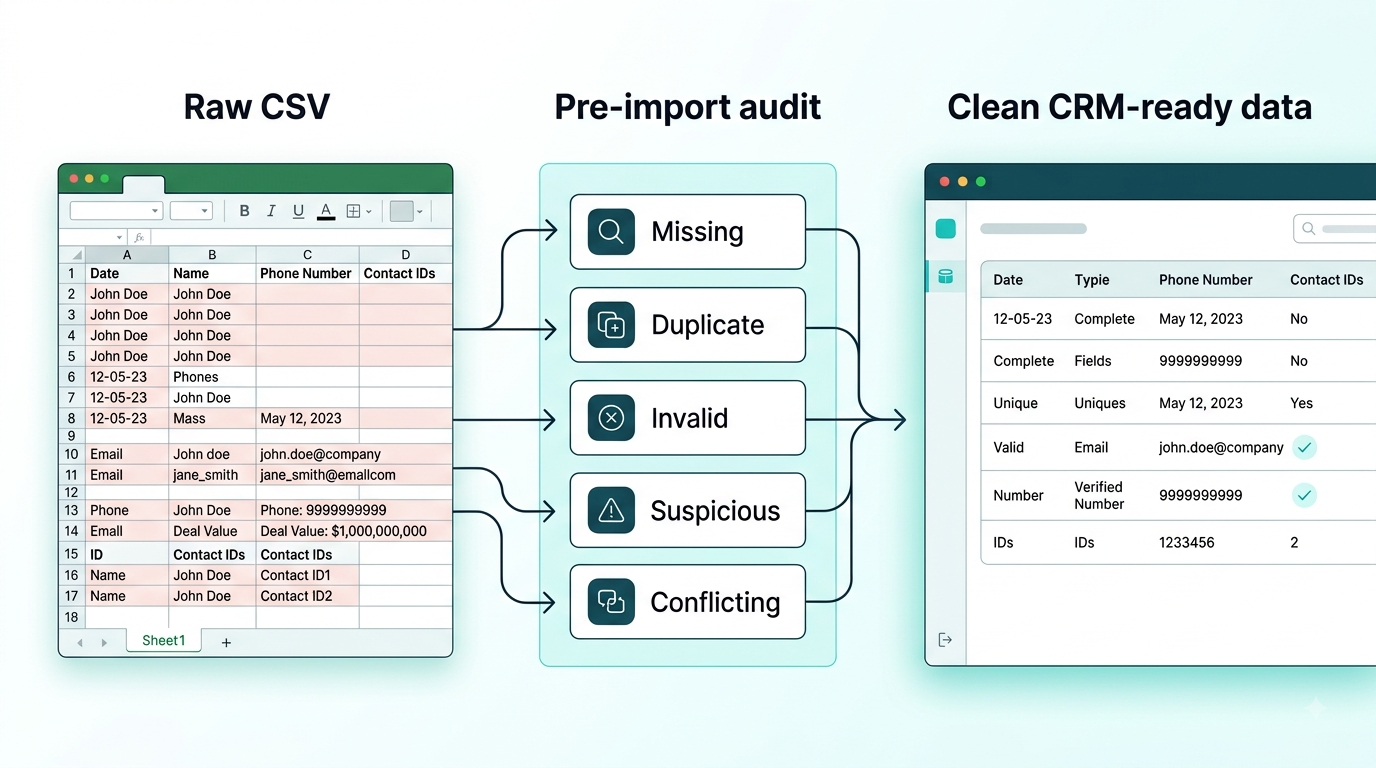
Why cleaning the file first matters
Once bad records enter your CRM, they stop being just spreadsheet problems.
They become business problems.
A duplicate contact can affect follow-up. A missing owner can affect accountability. A wrong status can distort reporting. A malformed email can damage campaign quality. A suspicious value can spread confusion across dashboards and decisions.
Fixing the source file before import is usually easier, faster, and cleaner than trying to repair the same issues after the records have already entered the system.
1. Check for missing required fields
Start with the obvious question: what absolutely must be present for each record?
That depends on your team and your CRM, but common examples include:
- customer ID
- company name
- owner
- status
- phone number
- pipeline or lifecycle fields
A row may technically import even when key fields are blank, but that does not mean it is ready. Missing data often creates partial records that are difficult to use and difficult to trust.
The point is not only to ask, “Will the CRM accept this?”
The better question is, “Will this record still make sense after import?”
2. Find duplicate records
This is one of the biggest trouble areas.
But duplicate checking is not as simple as removing identical rows.
Two rows can represent the same customer even if they are not exact matches. The email might be slightly different. The name might be capitalized differently. One row may contain more complete information than the other. One may contain an old phone number while the other contains an updated one.
That is why duplicate handling is really an investigation problem, not only a spreadsheet trick.
You want to catch cases like:
- same email, different name
- same phone number, different contact
- same customer ID assigned twice
- highly similar company names
- repeated entities with inconsistent details
A CRM import that accepts duplicates cleanly is still a bad import.
3. Verify identifiers
Identifiers deserve their own pass.
If your file contains customer IDs, account IDs, invoice IDs, contact IDs, or similar keys, ask:
- Are IDs unique where they should be unique?
- Are any IDs missing?
- Has one ID been assigned to multiple different entities?
- Were identifiers accidentally turned into numeric values?
- Were leading zeros lost during export or editing?
This is especially important when data has moved through Excel, because Excel is famous for reinterpreting values in ways that can silently damage identifiers.
A clean-looking file can still have broken keys.
4. Standardize dates and numeric formats
Dates and numbers often look harmless until you inspect them closely.
Examples:
- 08/11/2026
- 11/08/2026
- 2026-08-11
Those may not mean the same thing.
The same goes for number formatting:
- 1,200.50
- 1.200,50
If your file mixes date styles, decimal conventions, currencies, or formatting assumptions, the CRM may import them inconsistently — or your team may interpret them differently later.
The goal is not just consistency for the import engine.
It is consistency for the humans who will read and act on the records afterward.
5. Inspect email and phone fields
Many import problems start here.
Check for:
- blank values
- malformed addresses
- trailing spaces
- unexpected characters
- duplicate emails
- inconsistent phone formatting
- values stored in the wrong column
You are not just validating syntax. You are checking reliability.
A phone number may technically be a valid string and still be the wrong phone number. An email may look fine but actually belong to a different contact. A value may pass a basic rule while still being operationally wrong.
Successful import does not equal correct contactability.
6. Normalize categorical fields
Categorical fields are quiet troublemakers.
A CRM may expect a small clean set of values, but the file may contain variations like:
- Active
- active
- ACTIVE
- Actve
- Current
Or:
- Closed Won
- Closed-won
- won
- Won
- Complete
All of those may refer to the same business concept, but if they are not standardized, they create fragmented reporting and inconsistent behavior after import.
Common fields to review:
- lifecycle stage
- lead status
- pipeline status
- country
- team
- owner
- source
- account type
If a field is supposed to classify records, its value set must be controlled.
7. Look for suspicious outliers
Some values are not wrong because they fail formatting rules. They are wrong because they fail context.
That is where outlier checking matters.
Examples:
- a deal value far larger than typical records
- a quantity that looks impossible
- a date far outside the expected range
- a record with unusually complete or unusually empty fields
- a phone number with too many digits
- a postal code that makes no sense for the region
These records may import perfectly. That is exactly why they are dangerous.
Import validity is not the same thing as data validity.
8. Check for conflicting information across columns
Some issues only appear when you compare one field against another.
Examples:
- Country = US, but phone code = +44
- Status = Closed, but close date is blank
- Account ID exists, but account name does not match
- Contact marked active, but required related fields are empty
- Company name changed, but legacy ID still points elsewhere
These are not always formatting problems. They are logic problems.
A file may pass basic row-level checks and still fail when you look at the relationships between fields.
This is one reason why manual spreadsheet cleanup becomes so time-consuming: meaningful investigation often requires context, not just formulas.
9. Review the header structure and mapping logic
Before importing, confirm that the file structure itself is stable.
Look at:
- column names
- duplicated headers
- missing headers
- unexpected blank columns
- shifted values
- fields that no longer match the CRM mapping
- columns included “just in case” with unreliable content
A header mismatch can quietly send data into the wrong field or create a bad mapping decision during import.
This is one of those areas where a file can look visually fine while still being structurally wrong.
10. Treat the file as an investigation, not a quick cleanup
This is the big one.
Cleaning a CSV is not always about automatically replacing or deleting values.
Some records require judgment.
A duplicate may be legitimate.
A blank may be intentional.
An outlier may be correct.
A mismatch may reveal a real operational issue rather than a typo.
That is why the right workflow is not just find and delete.
It is detect → review → resolve → verify.
That is the difference between spreadsheet cleanup and actual data investigation.
A better way to think about CRM import readiness
If you are preparing a file for CRM import, the goal is not simply to make the upload succeed.
The goal is to know what you are importing.
That means understanding:
- which records are complete
- which records are duplicated
- which records are invalid
- which records are suspicious
- which records need human review before they move downstream
This is exactly where a structured investigation layer becomes useful.
A spreadsheet can help you work with data. But once the process becomes “build helper columns, stack formulas, filter problems, compare exceptions, review edge cases, and keep track of decisions,” you are no longer just editing a file.
You are running an investigation.
Where Auditere fits
Auditere is not a CRM.
It does not replace Salesforce, HubSpot, GoHighLevel, or your system of record.
It sits before or around those systems as the investigation layer for structured business data.
That means helping teams:
- surface duplicates
- find missing values
- identify suspicious records
- detect conflicting information
- review issues clearly
- keep track of investigation and resolution decisions
In other words: before bad data spreads into the rest of the workflow, Auditere helps make the problem visible.
Final thought
A successful CRM import only proves that the CRM accepted the file.
It does not prove the data was correct.
If the file matters, investigate it before you import it.
If your team spends too much time manually checking CSVs, duplicates, missing values, and suspicious records before import, explore Auditere.
Auditere helps investigate structured data before it becomes a bigger business problem.
Related reads: Audit before you import · Finding bad data in Excel · Small spreadsheets can still break your business
Auditere is live for beta. Start your free trial or view pricing.